


Introduction
The Die Configuration Tool is a free companion to United Die Company's die manufacturing services. To identify your organization, the app requires an access code — provided free of charge to all Udico customers. This article covers how to request a code, how to sign in on each platform, and how to resolve common issues.
Requesting an Access Code
If you are an existing Udico customer and do not yet have an access code:
- Go to udico.co/dct/dct
- Click the Get Started tab
- Complete the DCT Access Code Request form
- Udico will email your access code to the company email address you provided.
Prospective customers can use the same form to request a free 30-day evaluation code.
Signing In — Web App
- Launch the DCT at dct.udico.co
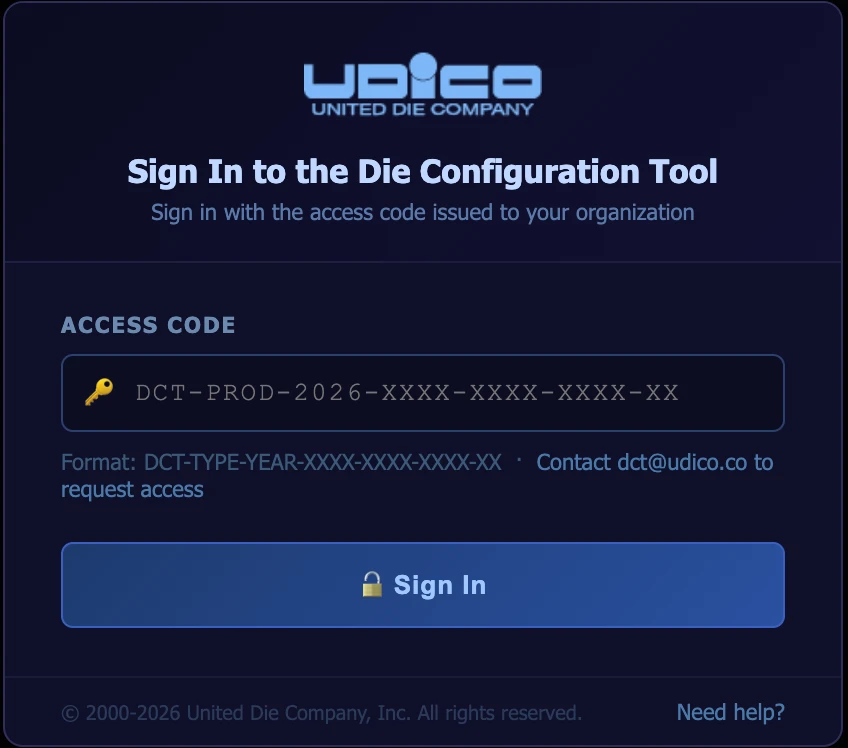
- The sign-in screen appears automatically
- Enter your access code exactly as provided (including dashes) and click Sign In
To change codes later: Preferences → Account → Change Access Code.
Your organization name, email, and expiration date appear in the Account tab once accepted.
Signing In — iPhone, iPad & Mac App
Once you have received your code:
- Download DCT from the App Store
- Accept the End User License Agreement on first launch
- Enter your access code on the sign-in screen and tap Sign In
The same access code works in the web app and the native apps on iPhone, iPad, and Mac.
Common Issues
Access Code not accepted
- Copy the full access code exactly as provided, including all dashes
- Verify you are on the official app at dct.udico.co
- Contact dct@udico.co if the issue persists
Access Code expired
Your expiration date is shown in the Account tab under Preferences. Contact dct@udico.co to renew.
Application not loading
The DCT must be accessed from the official Udico server. If it does not load:
- Check the DCT service status page to see whether a service outage is in progress
- Confirm you are online
- Clear your browser cache and reload
- Verify you are using a supported browser (Chrome, Firefox, or Safari)
Tip: You can opt in to service-outage email alerts under Preferences → Account — you'll receive an email if the services DCT relies on go down, and again when they recover.
Getting Support
For any access code questions, contact the Udico DCT support team:
- Email: dct@udico.co
- Phone: 1-800-428-5462
For complete documentation, see the DCT User Manual (web) and the platform guides linked from Help inside the app.


