


Introduction
The Preferences panel gives you control over how the DCT displays your die design, which color theme is active, and where to view and manage your access code. Open it by clicking the Preferences button in the toolbar.
The panel has three tabs: Options, Line Colors, and Account.
Options Tab
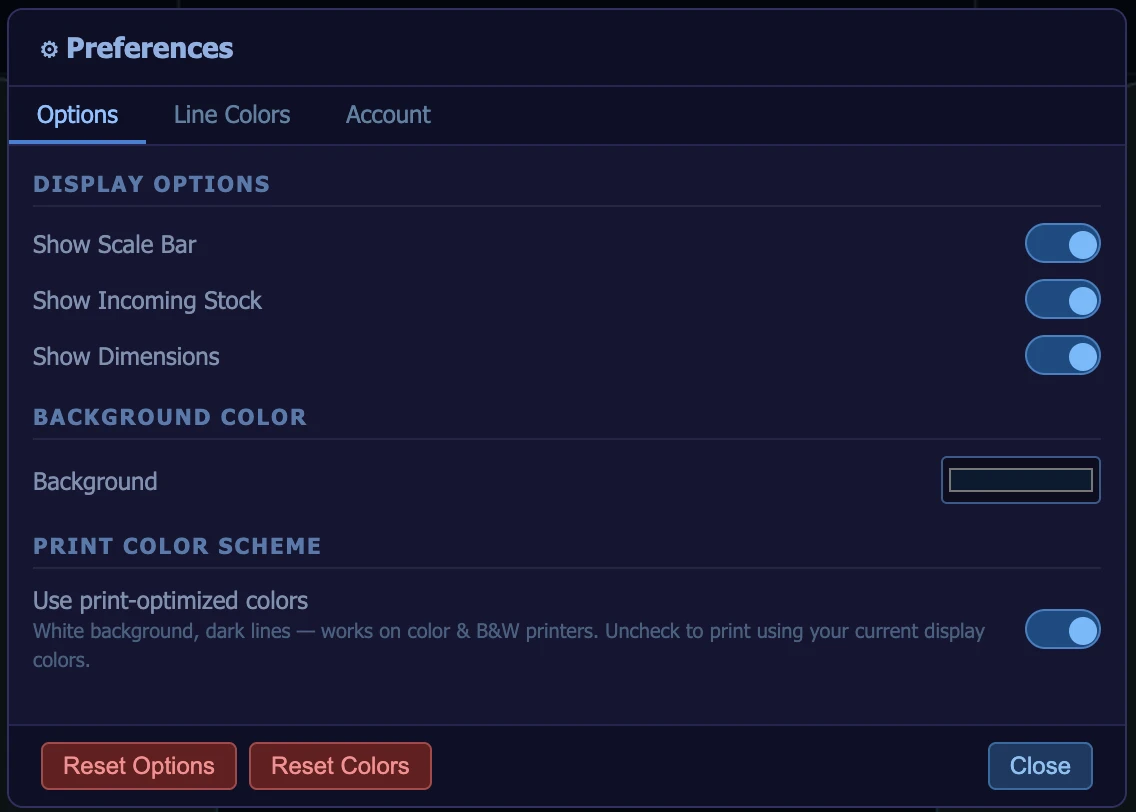
Display Options
Three toggles control what is visible on the drawing canvas:
- Show Scale Bar — displays a scale reference on the canvas
- Show Incoming Stock — overlays the incoming wire profile on the die geometry
- Show Dimensions — displays dimension labels (OD, bearing, nib height) on the canvas
Scale Factor
Controls how many pixels represent one inch on the canvas. The default is 300 px/in. Increase to zoom in on the geometry; decrease to see more of the die profile at once.
Background Color
Sets the canvas background color. Click the color swatch to open the color picker. This affects the display view only.
Print Color Scheme
When enabled, the DCT switches to a print-optimized color scheme (white background, dark lines) when generating print output. This ensures clear, legible results on both color and black-and-white printers. When disabled, the print output uses your current display colors.
Line Colors Tab
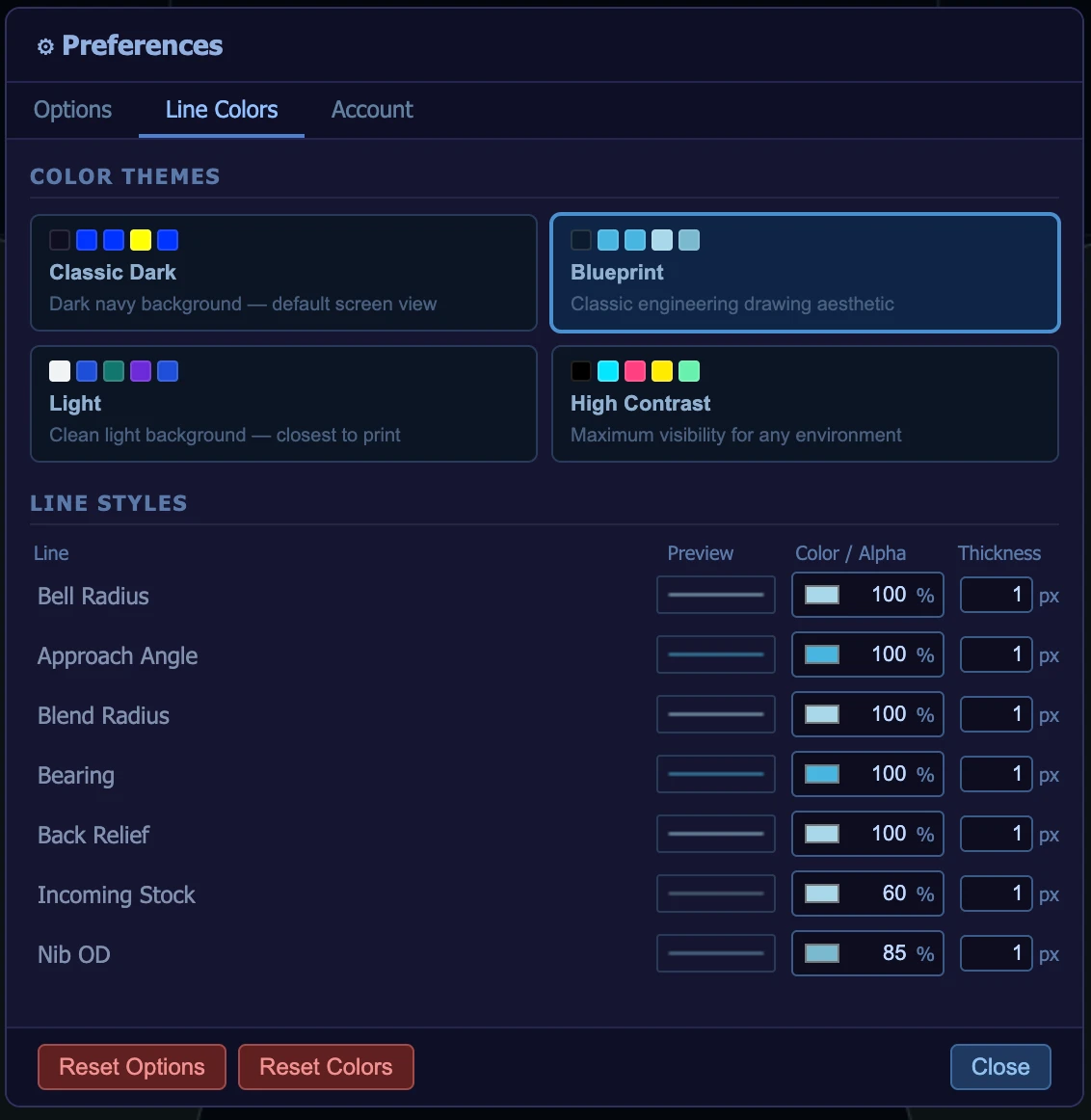
Color Themes
Four preset color themes are available:
- Classic Dark — dark navy background, default screen view
- Blueprint — classic engineering drawing aesthetic
- Light — clean light background, closest to print output
- High Contrast — maximum visibility for any environment
Click a theme to apply it instantly.
Line Styles
Below the themes, fine-tune individual line color, opacity (Alpha %), and thickness for each geometric element: Bell Radius, Approach Angle, Blend Radius, Bearing, Back Relief, Incoming Stock, and Nib OD.
Use Reset Colors at the bottom to restore default line styles for the current theme.
Account Tab
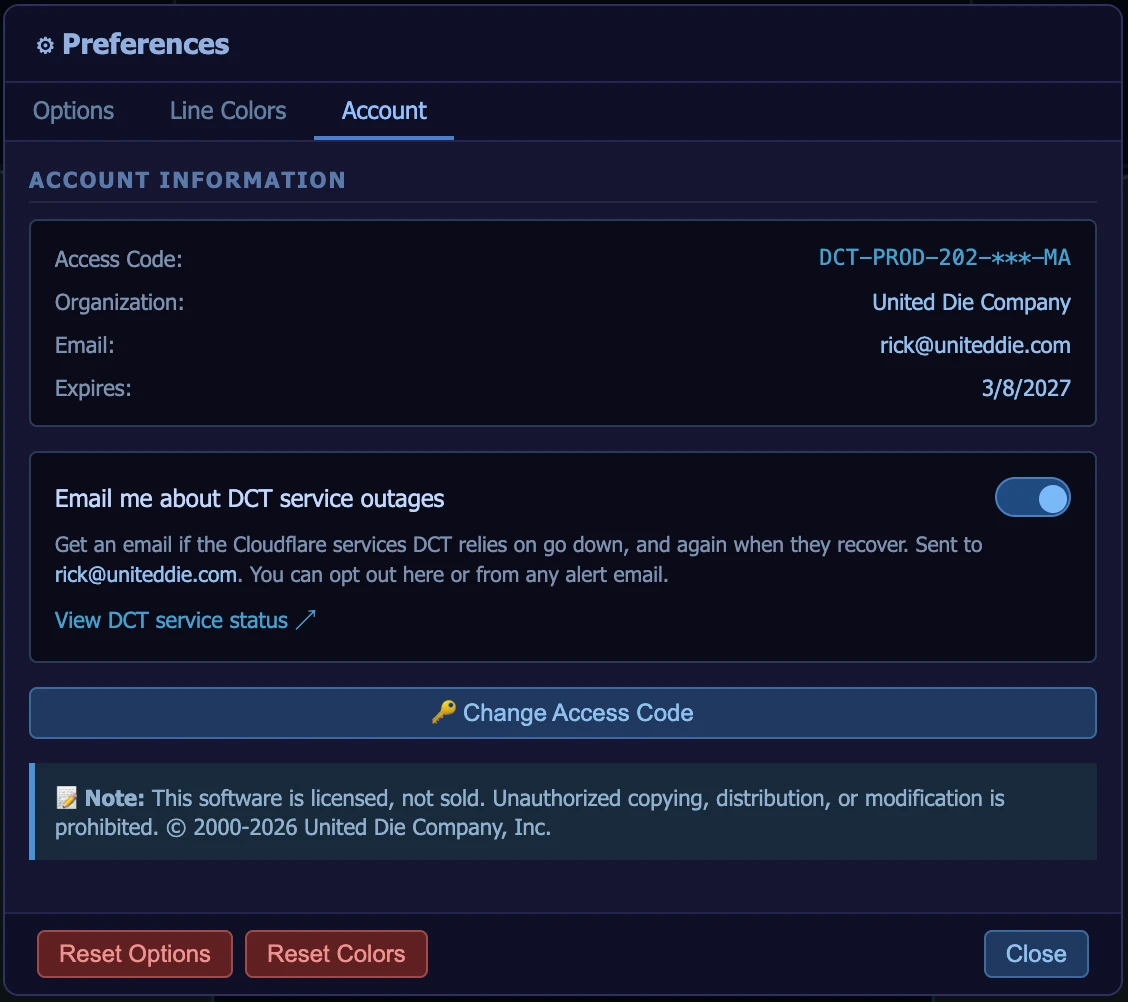
The Account tab displays the access information for your organization:
- Access Code — your unique code (partially masked for security)
- Organization — company name on the account
- Email — email address associated with the account
- Expires — access expiration date
Service-outage email alerts - toggle "Email me about DCT service outages" to get an email if the services DCT relies on go down, and again when they recover. Alerts go to your account email; you can opt out here or from any alert email. A "View DCT service status" link opens the live status page.
To enter a new or updated code, click Change Access Code. Contact dct@udico.co if your access code has expired or you need a replacement code.
Reset Options / Reset Colors
The Reset Options button restores all display and scale settings to defaults. Reset Colors restores all line color, alpha, and thickness values. These operate independently of each other.


